 An official website of the United States government.




About Querying the NPDB
Help Center
Querying Infographics
Continuous Query
How to Use Continuous Query (video - 4:52)
How to...
Activate Continuous Query
Enroll and Receive Continuous Query Notifications
Manage Continuous Query Enrollments
Use the Search Results to Enroll New Practitioners
Reenroll a Practitioner from a Canceled Enrollment
Resume a Query Enrollment
View Enrollment Confirmations
Update a Practitioner Profile in Continuous Query
Renew a Continuous Query Enrollment
Cancel a Query Enrollment
Store Subjects in Continuous Query
One-Time Query
NPDB Guidebook
About One-Time Query
How to...
Submit a One-Time Query
View Query Responses
Export Individual One-Time Query Subjects
Retrieve Historical Query and Report Summaries
Interpret Query Responses
Querying Through an External Application
How to Resume Enrollment of a Practitioner
You can resume a canceled enrollment by locating it in Manage Enrollments or from the search results when enrolling a single subject. Once you resume, the enrollment is active for the remainder of the initial one-year period, and your full history is saved. Any report disclosures withheld while the enrollment was canceled become available for download. You must submit a new Query if the enrollment period expires.
Method 1: Resume from Manage Enrollments
- Sign in to the NPDB.
- On the Select an Option page, choose Query.
Select an Option

- On the Query Options page, select Manage Enrollments.
Note: If you are querying as an authorized agent, you must select the entity on whose behalf you are enrolling the practitioner.Query Options

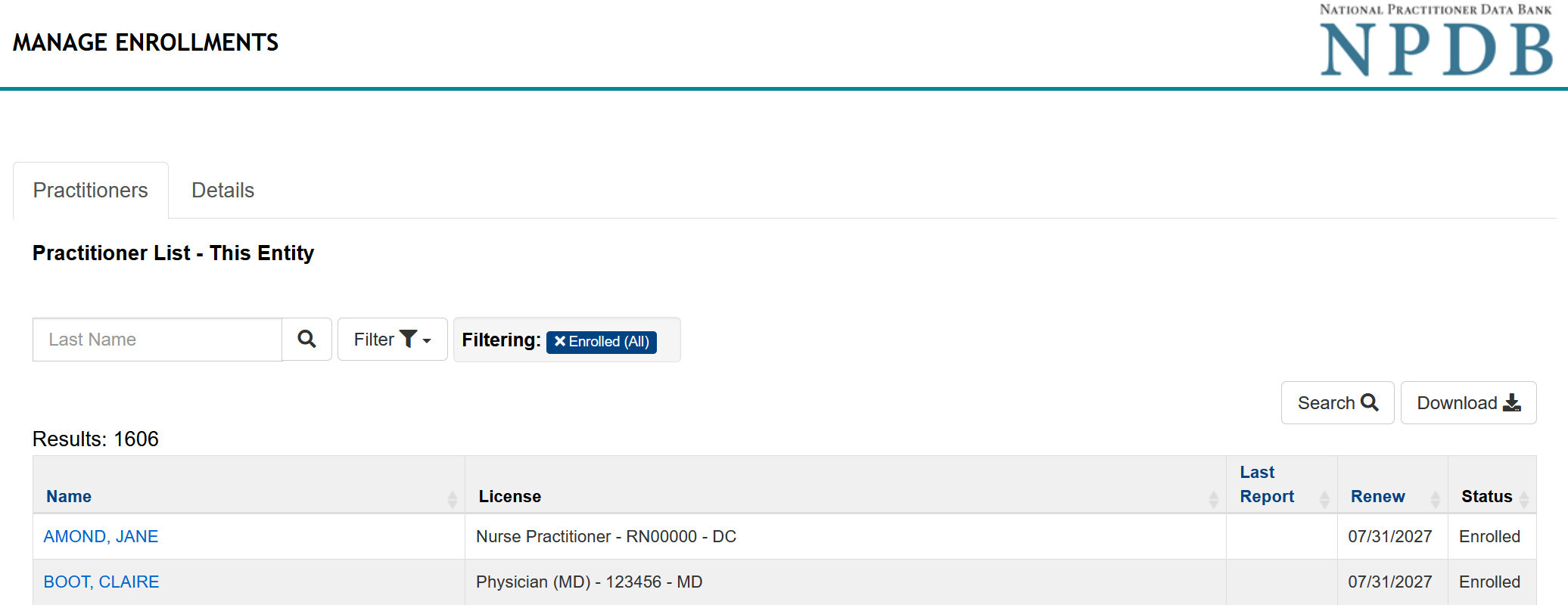
- On the Manage Enrollments page:
- Select Search to display filter options.
- Use the Canceled filter in the Enrollment Status field and any additional filters.
- Select Search to display only canceled enrollments.
- In the results table, select a name to view that practitioner's enrollment details.
Manage Enrollments
- Review the enrollment details, which include:
- Practitioner Information: Primary identifying details
- Select More Practitioner Information to view all details.
- Status: Current enrollment status
- View Confirmation: Link to view the enrollment confirmation
- Enrollment Dates: Start and end dates for the enrollment
- Initial Enrollment Source: Application used (IQRS or QRXS)
- Enrollment History and Related Enrollments: History of enrollment activity and other enrollments
- Select the practitioner's name for more details.
- Practitioner Information: Primary identifying details
- Select Resume Enrollment.
- Note: The Resume button is displayed only if the enrollment is canceled and the enrollment is still within its original enrollment period.
- Review the enrollment on the Resume Enrollment page.
- Select Submit to resume the enrollment at no charge.
- The resumed enrollment details will show on the Confirmation of Resumed Enrollment page. You can select the practitioner's name to review the practitioner details.
Method 2: Resume from Search Results
- Sign in to the NPDB.
- On the Select an Option page, choose Query.
Select an Option
- On the Query Options page, select Start a New Enrollment.
Query Options
- On the Enroll New Subjects page, select Enroll Single Subject.
Note: If you are querying as an authorized agent, you must first select the entity on whose behalf you are enrolling the practitioner. - Enter the practitioner's first and last name and select Continue to perform the search.
- On the Search Results page, review the Canceled Enrollments section.
- Select Resume in the Action column or select the practitioner's name to view the practitioner details.
- Note: The Resume option is available only if the canceled enrollment is still within its original enrollment period. If the original enrollment period has expired, select Reenroll to create a new enrollment.
- Review the enrollment on the Resume Enrollment page.
- Select Submit to resume the enrollment at no charge.
- The resumed enrollment details will show on the Confirmation of Resumed Enrollment page. You can select the practitioner's name to review the practitioner details.
Method 3: Resume from Bulk Enrollment
Resume from the Subject Database
- Sign in to the NPDB.
- On the Select an Option page, select Query.
Select an Option
- On the Query Options page, select Start a New Enrollment.
Query Options
- Select Enroll from Subject Database.
Note: If you are querying as an authorized agent, first select the entity on whose behalf you are enrolling the practitioners. - Select the practitioners you want to enroll and continue through the enrollment process.
- On the Enrollment Summary page, review the enrollment categories, which identify:
- Subjects eligible to be resumed
- Subjects eligible to be reenrolled
- New subjects to be enrolled
- Select the Resume enrollments option in the Subjects Eligible to Resume section.
- Select Continue to proceed through the remaining enrollment process.
- Select Submit to complete the enrollment. Eligible practitioners are resumed at no charge.
Resume from Imported Subjects
- Sign in to the NPDB.
- On the Select an Option page, select Query.
Select an Option
- On the Query Options page, select Import File for Enrollments.
Note: If you are querying as an authorized agent, first select the entity on whose behalf you are enrolling the practitioners.Query Options
- Upload the enrollment file and continue through the enrollment process.
- On the Enrolled Imported Subjects page, review the enrollment categories, which identify:
- Subjects eligible to be resumed
- Subjects eligible to be reenrolled
- New subjects to be enrolled
- Select Resume enrollments option in the Subjects Eligible to Resume section.
- Select Continue to proceed through the remaining enrollment process.
- Complete the Certifier Information section and select Submit to complete the enrollment. Eligible practitioners are resumed at no charge.
