 An official website of the United States government.




About Querying the NPDB
Help Center
Querying Infographics
Continuous Query
How to Use Continuous Query (video - 4:52)
How to...
Activate Continuous Query
Enroll and Receive Continuous Query Notifications
Manage Continuous Query Enrollments
Use the Search Results to Enroll New Practitioners
Reenroll a Practitioner from a Canceled Enrollment
Resume a Query Enrollment
View Enrollment Confirmations
Update a Practitioner Profile in Continuous Query
Renew a Continuous Query Enrollment
Cancel a Query Enrollment
Store Subjects in Continuous Query
One-Time Query
NPDB Guidebook
About One-Time Query
How to...
Submit a One-Time Query
View Query Responses
Export Individual One-Time Query Subjects
Retrieve Historical Query and Report Summaries
Interpret Query Responses
Querying Through an External Application
How to Reenroll a Practitioner from a Canceled Enrollment
You can reuse practitioner information from a canceled enrollment to reenroll the practitioner. Locate the canceled enrollment from the Manage Enrollments page or by using the search results when enrolling a single subject. The information will populate a new Enroll Subject form, where you can review and update the information before submitting.
If the canceled enrollment is still within its original enrollment period, you can resume the enrollment instead of reenrolling.
Method 1: Reenroll from Manage Enrollments
- Sign in to the NPDB.
- On the Select an Option page, choose Query.
Select an Option

- On the Query Options page, select Manage Enrollments.
Note: If you are querying as an authorized agent, you must select the entity on whose behalf you are enrolling the practitioner.Query Options

- On the Manage Enrollments page:
- Select Search to display filter options.
- Use the Canceled filter in the Enrollment Status field and any additional filters.
- Select Search to display only canceled enrollments.
Manage Enrollments
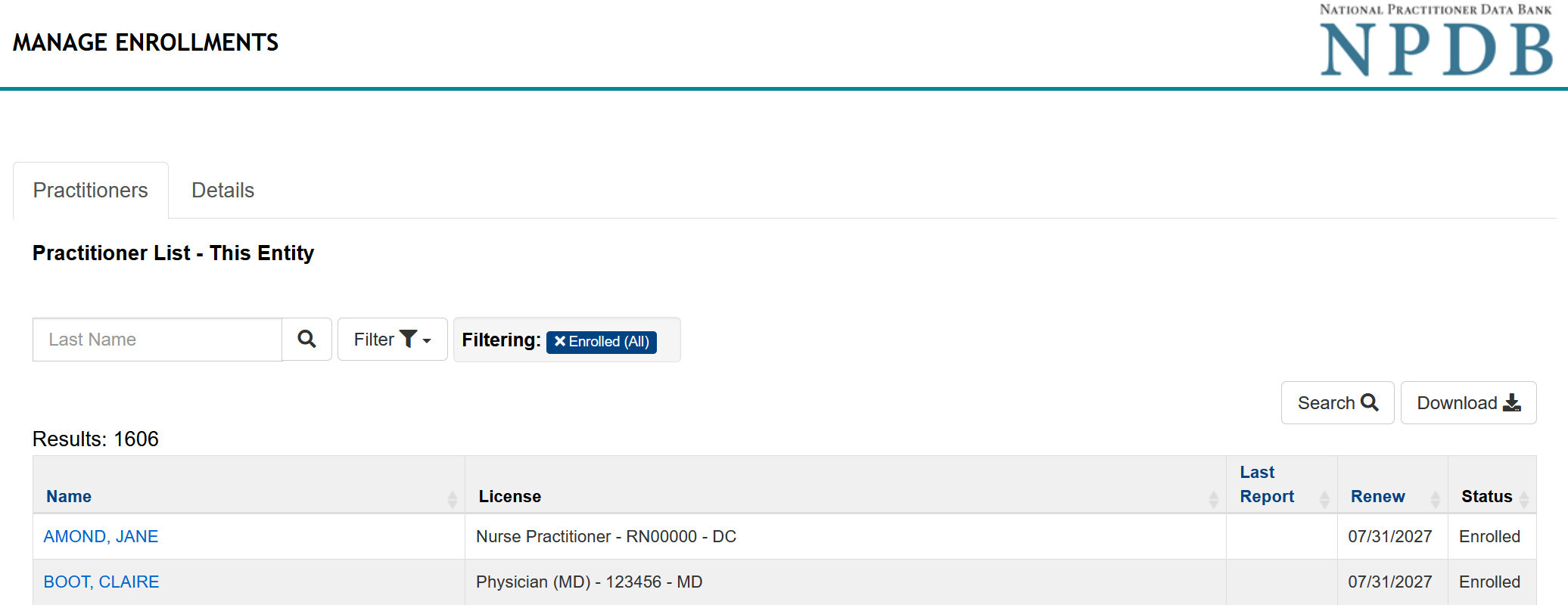
- In the results table, select the practitioner's name to review the practitioner details, which include:
- Practitioner Information: Primary identifying details
- Select More Practitioner Information to view all details.
- Status: Current enrollment status
- View Confirmation: Link to view the enrollment confirmation
- Enrollment Dates: Start and end dates for the enrollment
- Initial Enrollment Source: Application used (IQRS or QRXS)
- Enrollment History and Related Enrollments: History of enrollment activity and other enrollments
- Practitioner Information: Primary identifying details
- Select Reenroll Subject to open the Enroll Subject form. The practitioner's information will be prefilled with data from the canceled enrollment.
Note: The Reenroll Subject button is only displayed if the enrollment is canceled and the practitioner does not have another active enrollment. - Review and update the prepopulated practitioner information as needed.
- Complete the Submitter Certification page.
- Select Submit to complete the enrollment.
Method 2: Reenroll from Search Results
- Sign in to the NPDB.
- On the Select an Option page, choose Query.
Select an Option
- On the Query Options page, select Start a New Enrollment.
Query Options
- On the Enroll New Subjects page, select Enroll Single Subject.
Note: If you are querying as an authorized agent, you must first select the entity on whose behalf you are enrolling the practitioner. - Enter the practitioner's first and last name and select Continue to perform the search.
- On the Search Results page, review the Canceled Enrollments section.
- Select Reenroll in the Action column or select the practitioner's name to view the practitioner details.
- Select Reenroll Subject on the Manage Enrollments page to open the Enroll Subject form. The practitioner's information will be prefilled with information from the canceled enrollment.
- Review and update the prepopulated practitioner information as needed.
- Select Submit to complete the enrollment.
Method 3: Reenroll From Bulk Enrollment
Reenroll from the Subject Database
- Sign in to the NPDB.
- On the Select an Option page, select Query.
Select an Option
- On the Query Options page, select Start a New Enrollment.
Query Options
- Select Enroll from Subject Database.
Note: If you are querying as an authorized agent, first select the entity on whose behalf you are enrolling the practitioners. - Select the practitioners you want to enroll and continue through the enrollment process.
- On the Enrollment Summary page, review the enrollment categories, which identify:
- Subjects eligible to be resumed
- Subjects eligible to be reenrolled
- New subjects to be enrolled
- Select the Reenroll subjects option in the Subjects Eligible to Resume section.
- Select Continue to proceed through the remaining enrollment process.
- Select Submit to complete the enrollments.
Reenroll from Imported Subjects
- Sign in to the NPDB.
- On the Select an Option page, select Query.
Select an Option
- On the Query Options page, select Import File for Enrollments.
Note: If you are querying as an authorized agent, first select the entity on whose behalf you are enrolling the practitioners.Query Options
- Upload the enrollment file and continue through the enrollment process.
- On the Enrolled Imported Subjects page, review the enrollment categories, which identify:
- Subjects eligible to be resumed
- Subjects eligible to be reenrolled
- New subjects to be enrolled
- Select Reenroll subjects option in the Subjects Eligible to Resume section.
- Select Continue to proceed through the remaining enrollment process.
- Complete the Certifier Information section.
- Select Submit to complete the enrollments.
